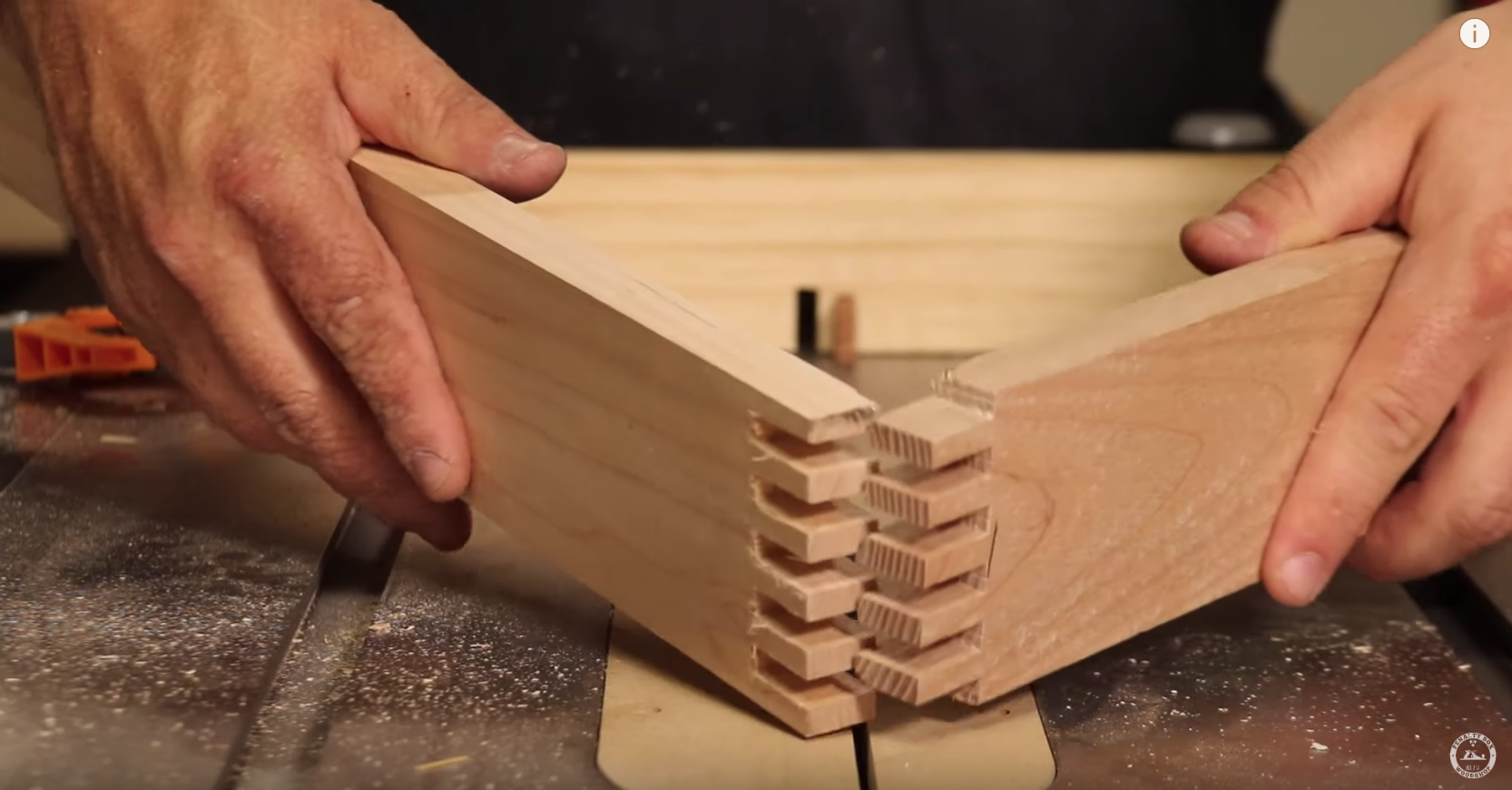
You know that feeling. You’ve spent hours designing a box. The vector lines are crisp. The math checks out. You hit "cut" on your laser cutter, wait for the hum to die down, and pull out the pieces with that specific mix of hope and dread. You start assembling the finger joints. And then… it happens. They’re loose. Wobbly. Or worse, they don’t fit at all because the tabs are too thick. It’s frustrating. It feels like you did something wrong. But here’s the secret: you probably didn’t. You just forgot about the invisible gap.
In 2026, laser cutting is more accessible than ever, yet this one tiny variable still trips up beginners and pros alike. It’s called kerf. It’s the material burned away by the laser beam. It’s small—often less than a millimeter—but in the world of precision joinery, it’s the difference between a heirloom-quality box and a pile of kindling. Ignoring it is easy. Mastering it? That’s where the magic happens.
Let’s talk about how to stop guessing and start getting those joints so tight they squeak. Because when you nail kerf compensation, your projects don’t just look better. They feel better. They hold together with a satisfying snap that tells you, yeah, you got this right.
What Exactly Is Kerf and Why Does It Ruin Your Joints?
Kerf is simply the width of the cut. Think of it like sawdust. When you use a table saw, the blade has a thickness. That thickness removes wood. A laser does the same thing, but instead of steel teeth, it uses a focused beam of light to vaporize material. That vaporized space is your kerf. In 2026, most hobbyist CO2 lasers have a kerf width between 0.1mm and 0.3mm, depending on the lens, the power settings, and the material. Fiber lasers might be tighter, but the principle remains identical.
Why does this matter for finger joints? Imagine you design a tab that is exactly 5mm wide. The laser cuts along the left side of the line and the right side of the line. If your kerf is 0.2mm, the laser burns away 0.1mm from the left and 0.1mm from the right (assuming the beam is centered on the line). Your final tab is now 4.8mm wide. Meanwhile, the slot you designed to be 5mm wide is now 5.2mm wide because the material was removed from both sides of the empty space. You’ve created a 0.4mm gap. In woodworking terms, that’s sloppy. In laser cutting, it’s standard if you don’t compensate.
The confusion usually comes from how software handles lines. Most design programs draw a vector line with zero thickness. But the laser beam has physical width. If you tell the laser to follow the line exactly, it will burn half its width on one side and half on the other. This is why your parts end up smaller than intended on the outside and larger on the inside. It’s a geometric headache, but once you see it, you can’t unsee it. And honestly? It’s kinda cool once you learn to control it.
Measuring Your Specific Kerf Width Accurately
You can’t fix what you don’t measure. And here’s the kicker: your kerf width isn’t a constant number. It changes. Cut through 3mm birch plywood at 50% power, and you get one width. Cut through 6mm acrylic at 80% power, and you get another. Even the humidity in your shop can tweak the results slightly. That’s why relying on a generic "0.2mm" setting from a forum post is a recipe for mediocrity. You need to find your kerf, for your machine, on your material.
The best way to do this in 2026 is still the old-school test coupon method. Don’t overcomplicate it. Draw a rectangle in your design software. Make it, say, 50mm wide. Inside that rectangle, draw nine vertical lines spaced evenly apart. Cut this shape out of the material you plan to use for your actual project. Once it’s cut, take the piece and push all the ten sections together tightly. Measure the total width of the compressed group. Subtract that number from the original 50mm. Divide the result by the number of cuts (which is 10 in this case, since there are 9 internal lines plus the 2 outer edges effectively creating the gaps, but simpler math is: Total Material Lost / Number of Cuts). Actually, an easier way: Measure the width of the entire block after pushing the segments together. Let’s say it’s 48mm. You lost 2mm. You made 10 cuts (if you count the outsides) or just look at the internal slots. A common method is the "comb" test. Create a comb with 10 teeth. Measure the total width of the teeth. Compare it to the theoretical width. The difference divided by the number of teeth gives you the kerf.
Wait, let’s keep it simple. Use a online kerf calculator like the ones from woodworking-calculators.com or getbeamflow.com. They walk you through it. But the physical act of measuring is crucial. Use digital calipers. Not a ruler. Calipers. They give you that 0.01mm precision you need. Write down the number. Tape it to your laser. This number is your golden ticket. Without it, you’re just guessing. And guessing wastes material. And time. And patience.
The Math Behind Perfect Finger Joint Design
Okay, so you have your kerf number. Let’s say it’s 0.2mm. Now, how do you apply it to finger joints? This is where people get tangled up. There are two ways to think about compensation: offsetting the line or adjusting the dimensions. In 2026, most modern software like LightBurn or specialized plugins for Illustrator and Fusion 360 handle this with "kerf compensation" settings. But understanding the underlying math helps you troubleshoot when the software acts weird.
For a finger joint, you have tabs (the fingers) and slots (the spaces). If you want a tight fit, the tab needs to be slightly wider than the slot to account for the kerf. Here’s the rule of thumb: Offset the cut line outward for the tabs and inward for the slots. Specifically, you offset by half the kerf width. So, if your kerf is 0.2mm, you offset by 0.1mm. Why half? Because the laser beam is centered on the line. By moving the line 0.1mm outward, you ensure that the 0.1mm of burn on the "inside" of the tab doesn’t eat into your material. The tab stays its full designed width. Conversely, for the slot, you move the line inward by 0.1mm. This makes the hole slightly smaller, so when the laser burns 0.1mm away, the final hole is the exact size you wanted.
It sounds backward, right? Making the hole smaller to get the right size? But think about it. The laser removes material. If you draw a 5mm hole, the laser burns 0.1mm off each wall, making it 5.2mm. To get a 5mm hole, you need to draw a 4.8mm hole. Then the laser burns 0.1mm off each side, resulting in 5.0mm. It’s subtraction logic. Once you wrap your head around this, you can design joints that fit perfectly without needing sandpaper or glue to fill gaps. And that’s the goal. Clean, crisp, friction-fit joints that look like they grew that way.
Software Settings and Tools for 2026 Workflows
Gone are the days of manually offsetting every single line in your CAD program. Well, mostly. In 2026, we have tools that make this incredibly easy, but you still need to know which buttons to push. LightBurn, which has become the industry standard for hobbyists and pros alike, has a built-in kerf compensation feature. You can set it globally or per layer. This is huge. It means you can cut your outer profile with one setting and your internal finger joints with another if needed.
When setting up your file, look for the "Cut Layer" settings. You’ll see an option for "Kerf Width." Enter your measured value here. But be careful. LightBurn asks if you want to compensate for "Inner" or "Outer" cuts. For finger joints, you’re dealing with both. The tabs are "outer" features (material remains), and the slots are "inner" features (material removed). Some users find it easier to design the joints with the compensation already baked into the geometry using a plugin or script, rather than relying on the live offset. Why? Because live offset can sometimes cause corner issues or overlap errors if the vectors aren’t perfectly closed.
Other tools like Fusion 360 have CAM plugins that handle this automatically. If you’re generating DXF files for a service bureau or a different machine, check if your exporter has a "kerf compensation" checkbox. If not, you might need to use a standalone tool like the one from kod5.com to process your DXF before sending it to the laser. These tools compute the offsets based on plate thickness and taper angle, which is fancy talk for "making sure the cut is square." Always do a test run. Never send a big job to the laser without testing your kerf settings on a scrap piece first. It saves heartache. And money.
Material Variables and Heat-Affected Zones
Here’s something the calculators won’t tell you: wood isn’t plastic. It’s alive. Well, it was. And it behaves differently depending on its grain, density, and moisture content. In 2026, we have better materials than ever, but variability is still a thing. Plywood, for instance, has voids. Sometimes the laser hits a glue pocket, and the kerf widens suddenly. MDF is consistent but creates a lot of char. Acrylic melts and resolidifies, which can actually narrow the kerf at the bottom if you’re not careful with your air assist.
This is where the "heat-affected zone" (HAZ) comes in. The laser doesn’t just cut; it heats the surrounding material. This can cause slight swelling or charring on the edges of your finger joints. If you’re aiming for a super-tight press fit, this char can add enough thickness to make the joint impossible to assemble. Or, if the char flakes off, it makes the joint loose. The solution? Air assist. Make sure your air assist is tuned correctly. It blows away the debris and cools the cut edge, reducing the HAZ. Also, consider your speed. Too slow, and you burn more material (wider kerf). Too fast, and you might not cut through cleanly. Finding the sweet spot is part of the art.
Another tip: direction matters. Cutting with the grain vs. against the grain can produce slightly different kerf widths in solid wood. For plywood, the alternating layers usually average this out, but it’s worth noting. If you’re doing high-precision work, like intricate marquetry or multi-layer boxes, you might need to adjust your kerf compensation slightly for different materials. Keep a log. "Birch Ply 3mm: 0.18mm kerf." "Acrylic 3mm: 0.12mm kerf." Over time, you’ll build a personal database that saves you from re-measuring every single time. It’s these little details that separate the amateurs from the masters.
So, you measured your kerf. You set your software. You cut the box. And it still doesn’t fit right. Don’t panic. This is normal. Pure kerf compensation accounts for the material removed, but it doesn’t account for everything. Maybe your material is slightly thicker than the 3.0mm you told the software. Maybe your laser lens is dirty, changing the focus point. Maybe the machine’s belts are slightly loose, causing a tiny bit of backlash. These are mechanical realities.
The fix is "fit tuning." This is a step beyond kerf compensation. Instead of relying solely on the calculated offset, you cut a small test coupon with a few finger joints. Try to assemble them. If they’re too tight, increase the slot size by 0.05mm increments. If they’re too loose, decrease the slot size. It’s iterative. It’s annoying. But it’s necessary for perfection. In 2026, some advanced users use parametric design scripts that allow them to tweak a single "fit tolerance" variable and regenerate the entire design instantly. If you’re not there yet, just manual adjustment works fine.
Also, check your squareness. If your gantry isn’t square, your finger joints won’t align properly, no matter how perfect your kerf comp is. Use a square to check your cuts. If the box twists when you assemble it, it’s a squareness issue, not a kerf issue. And don’t forget about tabs. If you’re using tabs to hold your parts in place during cutting, make sure they’re placed strategically so they don’t interfere with the finger joints. A 0.5mm tab bridge is usually enough. Remove them carefully with a flush cutter. Sanding the edges after cutting can also help remove any remaining char or slight imperfections, giving you that final smooth fit. Remember, perfection is a process, not a switch.
Getting finger joints right is satisfying. It’s tactile. It’s visual. When you slide two pieces together and they meet with that firm, gentle resistance, you know you’ve mastered the invisible gap. It’s not just about the math. It’s about understanding your machine, your material, and the physics of light burning wood. In 2026, the tools are better, but the fundamentals remain the same. Measure your kerf. Compensate correctly. Test your fit. Adjust for reality.
Don’t be discouraged by the first few failed boxes. Every wobbly joint is a lesson. Every tight fit is a victory. Keep your calipers handy. Keep your lens clean. And keep experimenting. The perfect box is out there, waiting for you to cut it. And when you finally hold it in your hands, seamless and solid, you’ll realize that all those tiny adjustments were worth it. Now go make something beautiful.
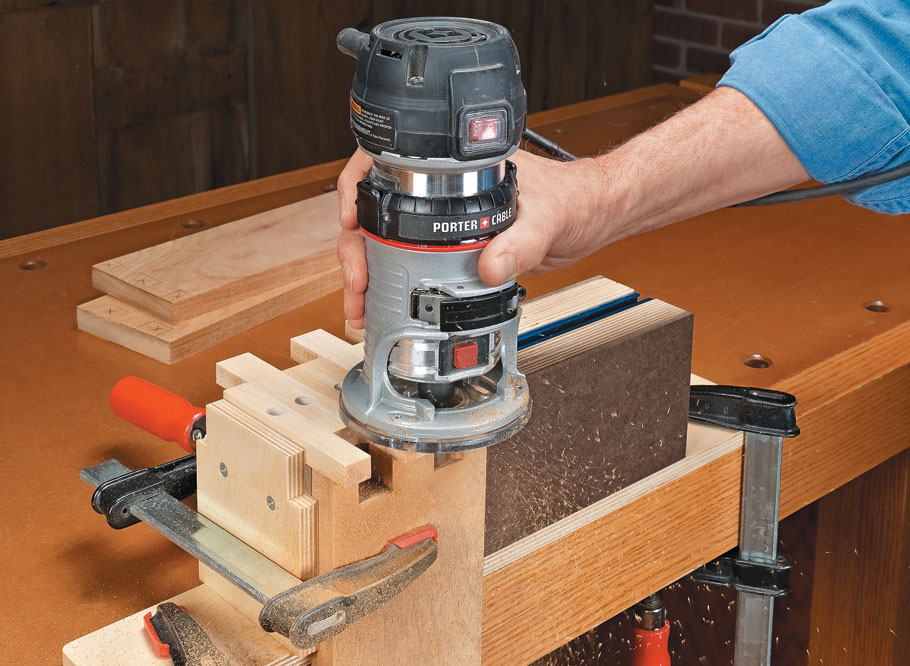
[sps_html tag=”img” src=”https://cdn.northcarolinafinearchitecture.com/2026/06/finger-joint-jig-woodworking-project-woodsmith-plans-in-building-stronger-boxes-with-precise-finger-joint-design.jpg” alt=”Finger Joint Jig | Woodworking Project | Woodsmith Plans in Building Stronger Boxes with Precise Finger Joint Design” style=”width: 100%; height: auto;”]
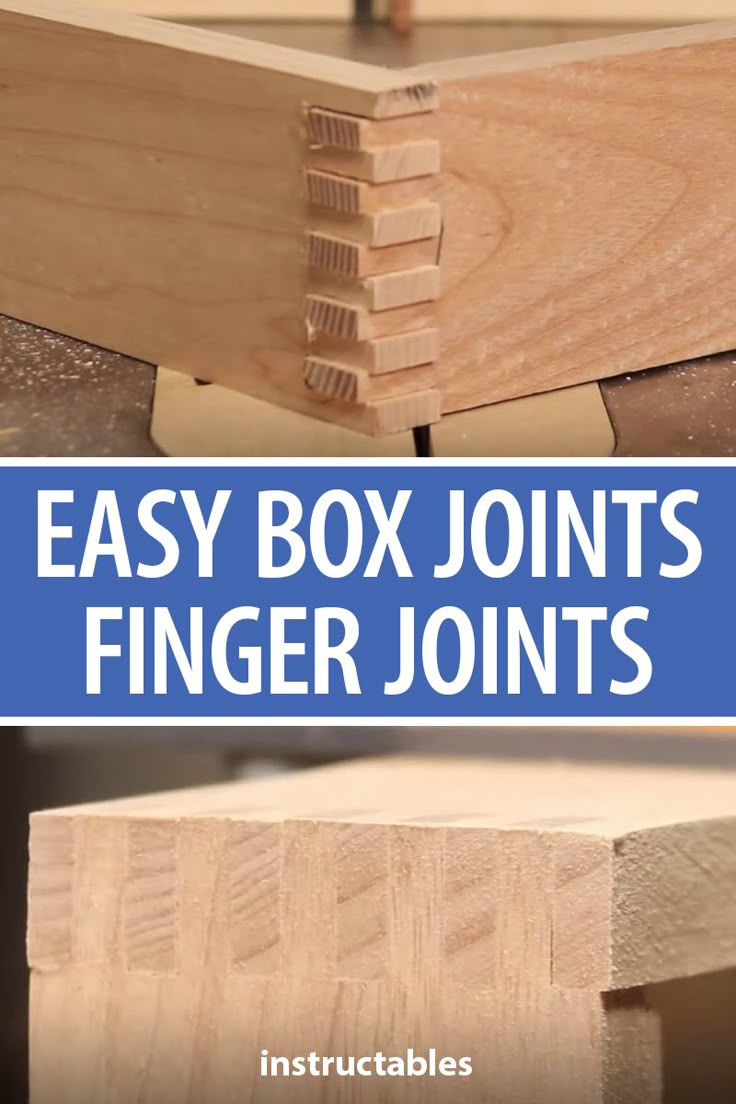
[sps_html tag=”img” src=”https://cdn.northcarolinafinearchitecture.com/2026/06/how-to-make-easy-box-joints-finger-joints-woodworking-joints-box-in-finger-joint-design.jpg” alt=”How To Make Easy Box Joints - Finger Joints | Woodworking Joints, Box … in Finger Joint Design” style=”width: 100%; height: auto;”]
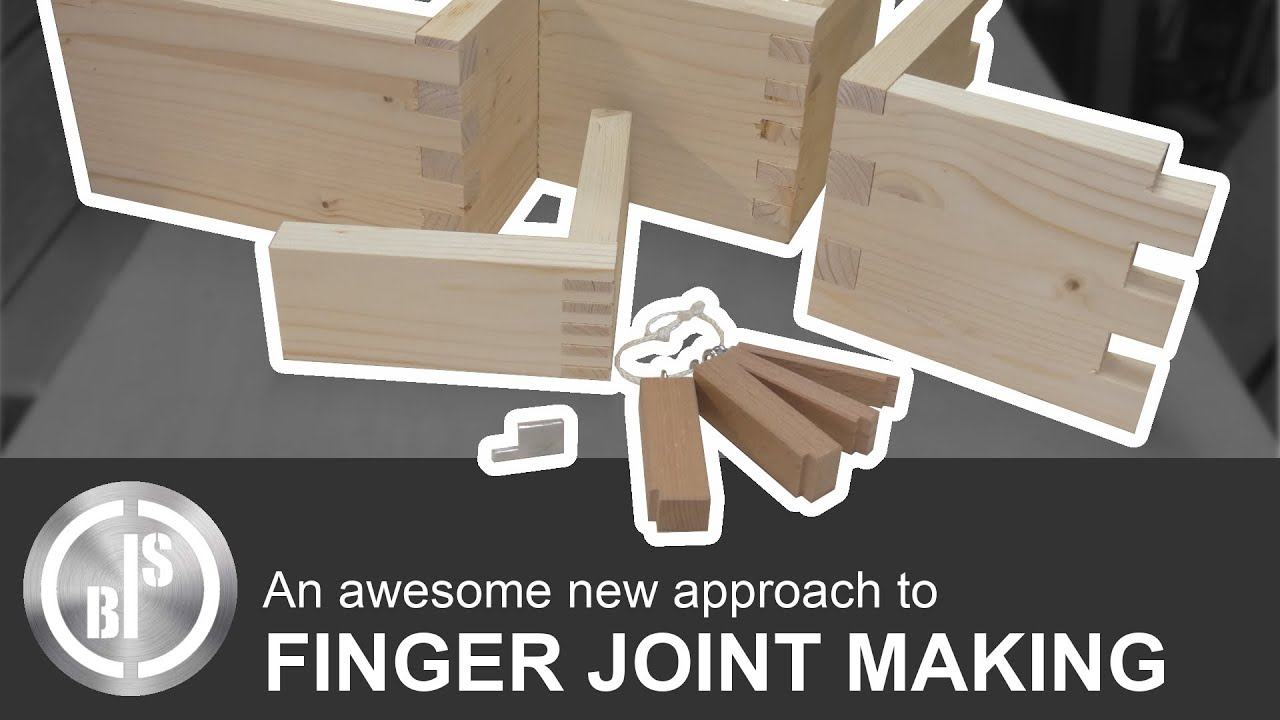
[sps_html tag=”img” src=”https://cdn.northcarolinafinearchitecture.com/2026/06/how-to-clamp-finger-joints-at-nathan-oneill-blog-inside-finger-joint-design.png” alt=”How To Clamp Finger Joints At Nathan Oneill Blog inside Finger Joint Design” style=”width: 100%; height: auto;”]
[sps_html tag=”img” src=”https://cdn.northcarolinafinearchitecture.com/2026/06/finger-joint-jig-woodworking-project-woodsmith-plans-with-regard-to-finger-joint-design.jpg” alt=”Finger Joint Jig | Woodworking Project | Woodsmith Plans with regard to Finger Joint Design” style=”width: 100%; height: auto;”]
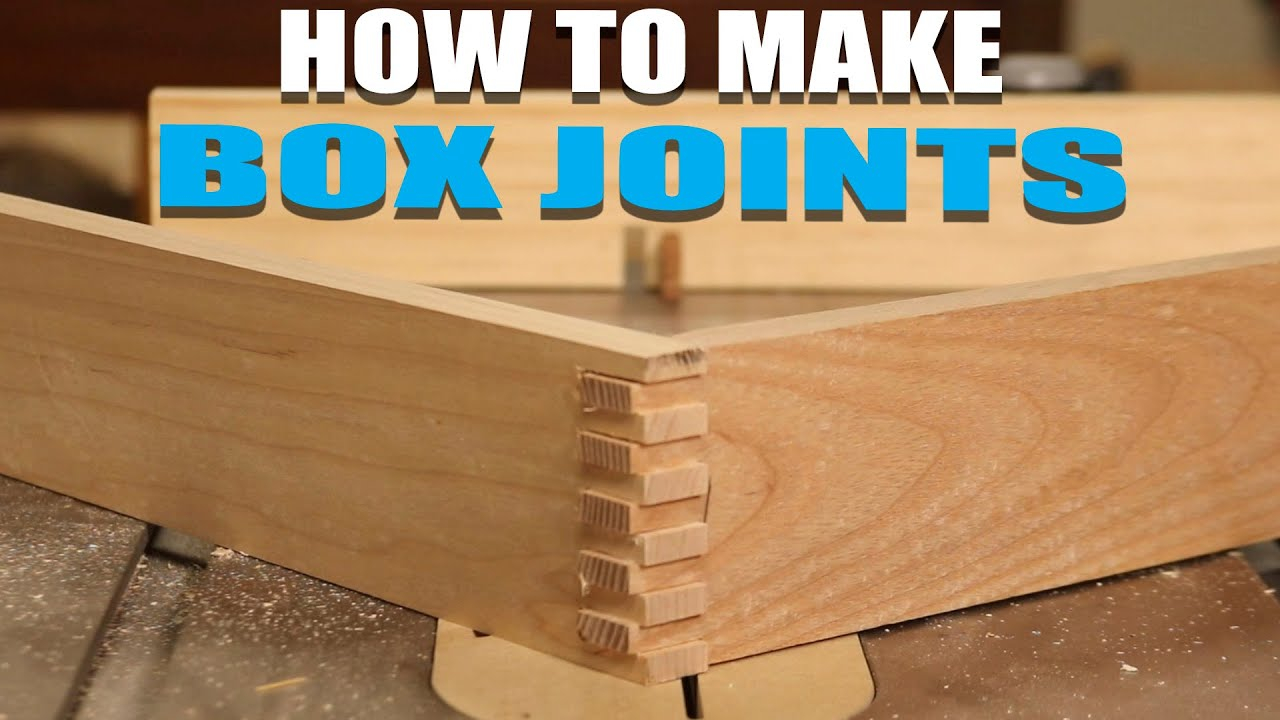
[sps_html tag=”img” src=”https://cdn.northcarolinafinearchitecture.com/2026/06/how-to-make-box-joints-finger-joints-easy-joinery-youtube-within-building-stronger-boxes-with-precise-finger-joint-design.jpg” alt=”How To Make Box Joints/Finger Joints - Easy Joinery - Youtube within Building Stronger Boxes with Precise Finger Joint Design” style=”width: 100%; height: auto;”]